 UniKiosk
Kiosk lockdown
Android kiosk lockdown
The complete guide to locking an Android device to one app: what UniKiosk holds shut, what Android will not let any app hold shut, and how to close the rest.
Locking an Android device to a single app is the part of a public screen that gets skipped and then causes every incident. This is the guide the rest of the category does not write.
What "locked down" has to mean
A screen in a public space needs four things to be true:
- Nobody can reach another app, the settings, or the browser.
- Nobody can see the device is Android at all.
- It recovers on its own from a reboot or a power cut.
- Somebody authorised can still get back in, without a tool.
Most "kiosk modes" deliver the first one badly and none of the rest.
What UniKiosk holds shut
The system bars. The status bar and navigation bar are hidden, and held hidden. Android will re-show them on a swipe from the edge; the app pushes them back. This is what the overlay permission is for — without it, one swipe and the device is browsable.
The hardware and gesture keys. Home, recents and back are swallowed rather than intercepted-and-ignored, so there is no visible flicker of the launcher.
The screen state. Held awake, orientation pinned, brightness fixed, so the panel does not dim itself after ten minutes or rotate when somebody knocks it.
Restart behaviour. The app starts on boot and returns to the published board. A power cut is not a site visit.
What no app can hold shut
Be clear about the boundary, because a lockdown you overestimate is worse than one you understand:
- The power button. Any app can be dismissed by powering the device off. Physical access beats software; the answer is an enclosure.
- Safe mode. Booting to safe mode disables third-party apps. Again: enclosure.
- adb over USB. If USB debugging is on and the port is reachable, the device is open. Turn debugging off before deployment and cover the port.
- A factory reset from recovery. Physical, and unavoidable without device-owner provisioning.
Closing these properly needs the device to be provisioned as device owner via an MDM or a factory-reset enrolment. UniKiosk deliberately does not require that — most shops, clinics and schools have no MDM and would never deploy at all if provisioning were the price of entry. If your threat model includes a determined person alone with the hardware, use both: an MDM for provisioning and UniKiosk for the board.
Getting back in
Five taps in the bottom-left corner, then the admin PIN.
There is no visible button, because a visible button is a button a member of the public will press. There is no gesture, because staff forget gestures. Five taps in a corner is discoverable enough to tell somebody over the phone and obscure enough that nobody finds it by accident.
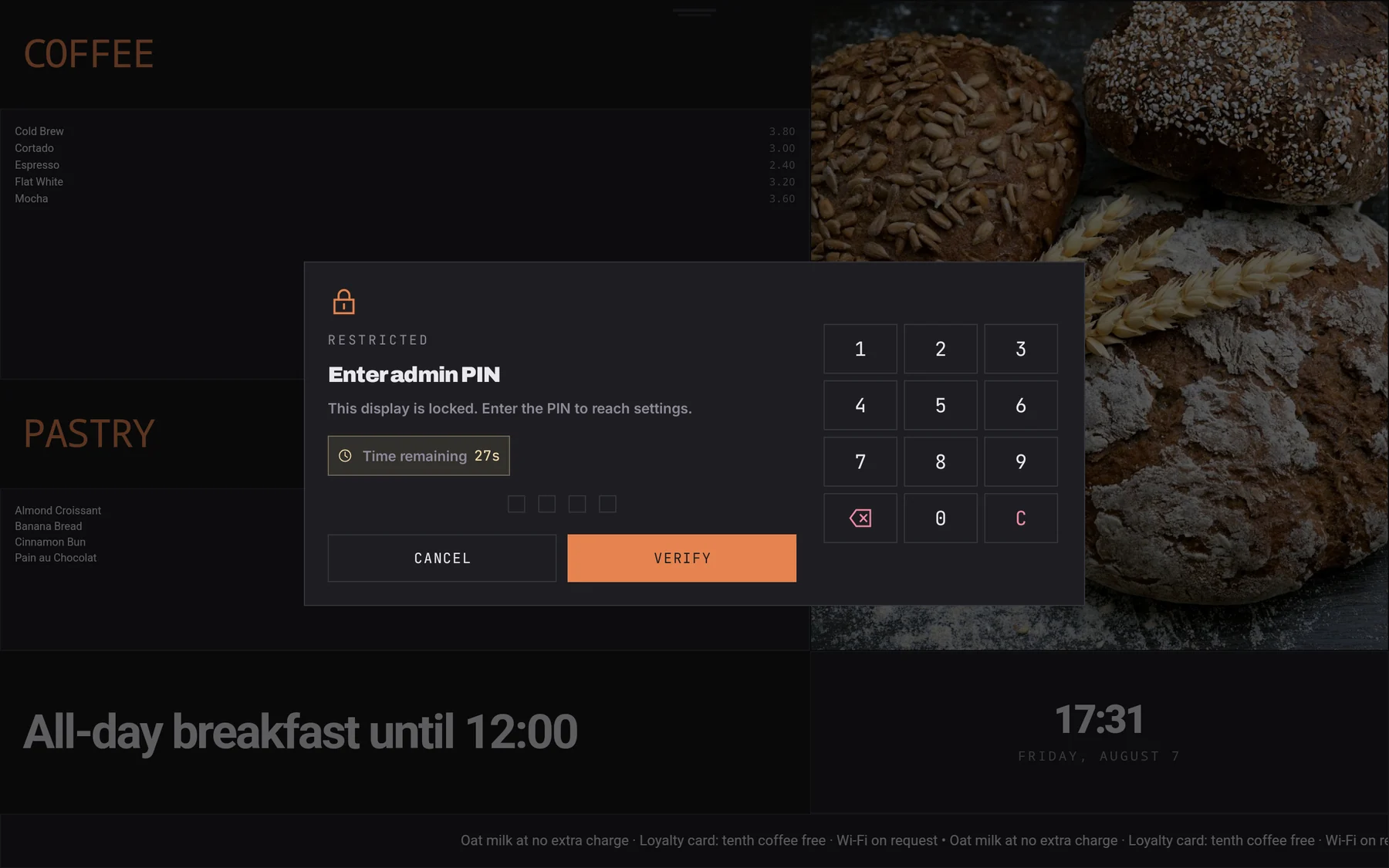
Set the PIN before you enable the lockdown. See the admin PIN.
A deployment checklist
- Admin PIN set, and written down somewhere other than on the device.
- Console password changed from its default.
- USB debugging off.
- Device on mains power, not a battery that will discharge overnight.
- Auto-rotate off; orientation pinned in the app.
- System updates set so the device does not reboot into an update at midday.
- The device physically enclosed, or at least out of reach.
- One reboot tested, and the board confirmed to come back on its own.
Then harden the rest
The software lockdown is one layer. Hardening a public kiosk covers the network, the enclosure and the failure modes that get you called out at the weekend.