 UniKiosk
Designing boards
The layout designer
Building a board from an empty grid: placing widgets, sizing them, theming, and publishing safely.
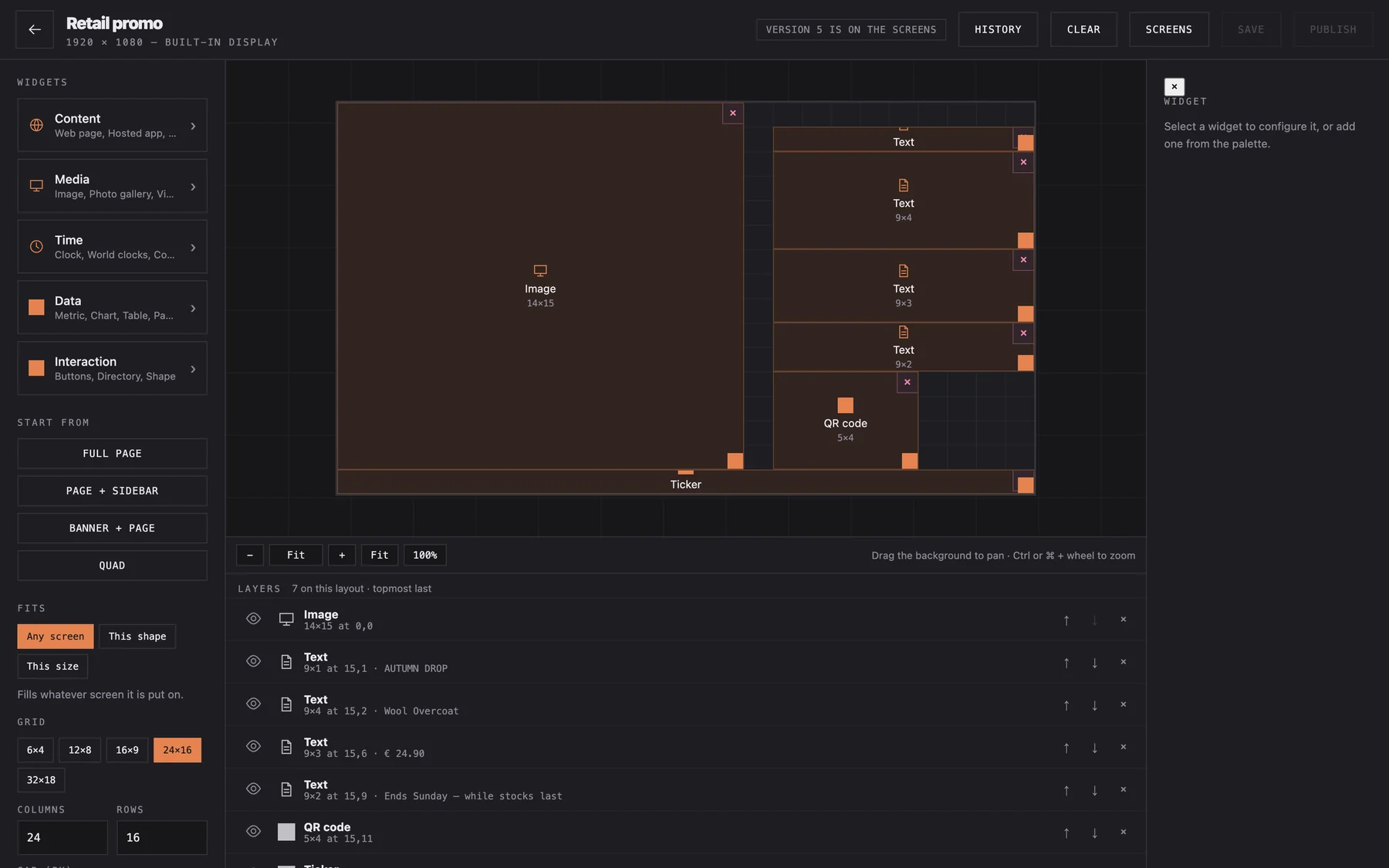
The designer is the middle pane of the console: a palette on the left, the grid in the middle, the layer list below.
Start from a template
Even when you want something custom, importing a nearby board from the gallery and deleting what you do not need is faster than starting empty, because the theme, the grid and the typography are already coherent.
Placing widgets
Drag from the palette onto the grid. A widget occupies a rectangle of cells; drag its edges to change how many. Overlapping is allowed and ordered by the layer list — useful for a text block over an image, and a mistake in almost every other case.
Sizing text
Widgets scale type from the smaller side of their own box, and some cap out deliberately. If text is too small, give the widget a bigger box. Reaching for a font-size override to fight the box is how a board ends up looking different on the next screen.
Composition that survives a room
A board is read from six metres, in a hurry, at an angle:
- One thing per board. A board with four messages communicates none.
- Big type, few words. If it does not fit at a size readable from the back of the room, it is too many words.
- High contrast. The dark themes here exist because a bright white panel in a dim room is unpleasant to stand near.
- Leave the edges alone. Panels overscan, and bezels eat corners.
- Motion sparingly. One moving element draws the eye; three cancel each other out.
Theming
Each layout carries a theme — ground, text colours, accent — and per-widget tweaks on top. Switching a board from dark to light is a theme change, not thirty widget edits.
Light boards are not just inverted dark ones: they want more contrast in the type and less saturation in the accent. Both variants exist in every industry in the gallery, so compare a pair before deciding which suits the room.
Draft, publish, revert
Editing does not touch the wall. Your changes accumulate in a draft; the screen shows the published version until you publish. Twenty published versions are retained, so revert is one press.
This is the feature to actually use. Publish, walk into the room, look at it from where customers stand, and revert if it does not hold up.
Before you publish
- Read it from across the room, not from the laptop.
- Check it on the real screen, not just in the preview — bezels and overscan are real.
- Replace every placeholder photograph.
- Check the board at the time of day it will be seen. A board designed at nine in the morning in a bright office can be unreadable at dusk.