 UniKiosk
Start here
Installing UniKiosk
Sideload the APK onto an Android 9+ device, grant the two permissions that matter, and reach the console.
UniKiosk is a single Android APK. There is no server to stand up, no account to create and no activation step, so "installing" means installing an app and then opening a browser.
What you need
- An Android device running 9.0 (API 28) or later. A TV stick, a tablet, a set-top box or a commercial panel all qualify.
- Mains power. Signage devices are not meant to sleep.
- A network the device and your laptop share, if you want to use the console from a laptop. It does not have to reach the internet.
Allowing the install
Android blocks installs from outside the Play Store until you allow the app that is doing the installing. On most builds this lives under Settings → Apps → Special access → Install unknown apps, and you grant it to whichever browser or file manager you will open the APK with.
If you evaluated rc1, uninstall it before installing this build. rc1 was unsigned and this one is signed, so Android refuses the replacement with INSTALL_FAILED_UPDATE_INCOMPATIBLE. Removing rc1 takes its layouts and media with it — export anything you want to keep first. Releases from rc2 onwards update over the top normally.
Installing
Either open the downloaded file on the device, or push it from a laptop:
adb install unikiosk-v0.0.1rc2-20260810.apkFor a batch of devices, the same command in a loop is the whole rollout — there is no licence key to enter and no enrolment step to script around.
The two permissions that matter
On first run the app asks for more than one thing, but two of them decide whether it can do its job:
- Display over other apps (overlay). This is how the lockdown holds the system bars hidden after somebody swipes at them. Without it, the bars come back.
- Storage / media access. This is how media is cached on the device so a board keeps playing when the network does not.
Grant both. If you skip them, the app runs but behaves like a browser tab.
Finding the console
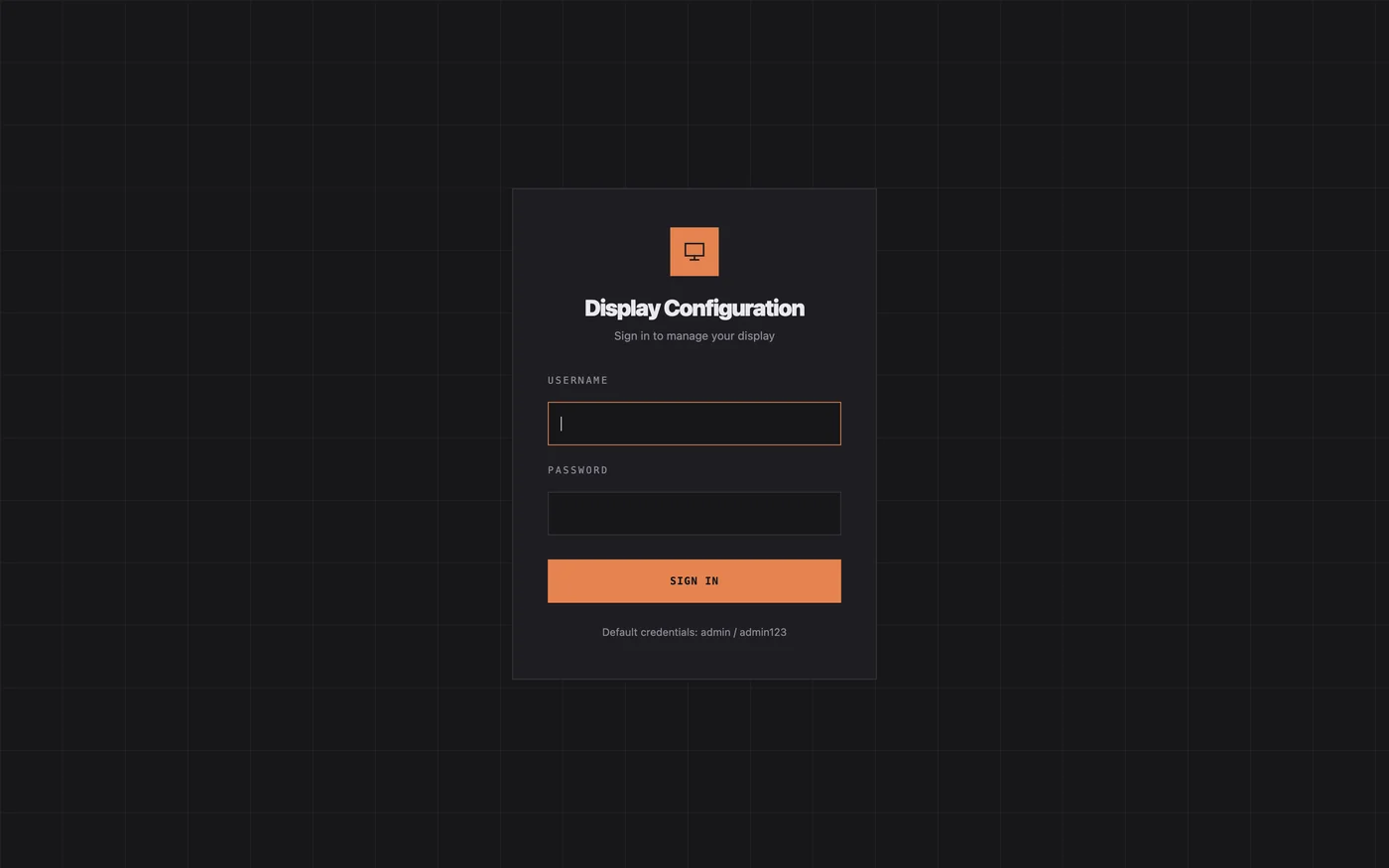
On first run the app shows its own address. Open http://<that address>:8080 from a laptop or phone on the same network and you land on the sign-in page.
Panels also announce themselves over SSDP, so on most networks you will not need to type an address at all.
Next
Go to your first board, which takes about ten minutes including the import.